
Delete and recover deliverables
Delete
- From the dashboard: hover over the card, open its More menu (the three dots) and choose Delete.
- From the editor: choose More, then Delete Deliverable.
Xtensio asks you to confirm. Choose Yes, Move to Trash, or Nevermind to keep it. The deliverable moves to Trash and its link stops working. If you deleted it from the editor, you’re taken back to your dashboard.
Deleting a team template from Templates > My Team Templates also moves its deliverable to Trash, so you can recover it the same way. See Create a shared team template.
Recover
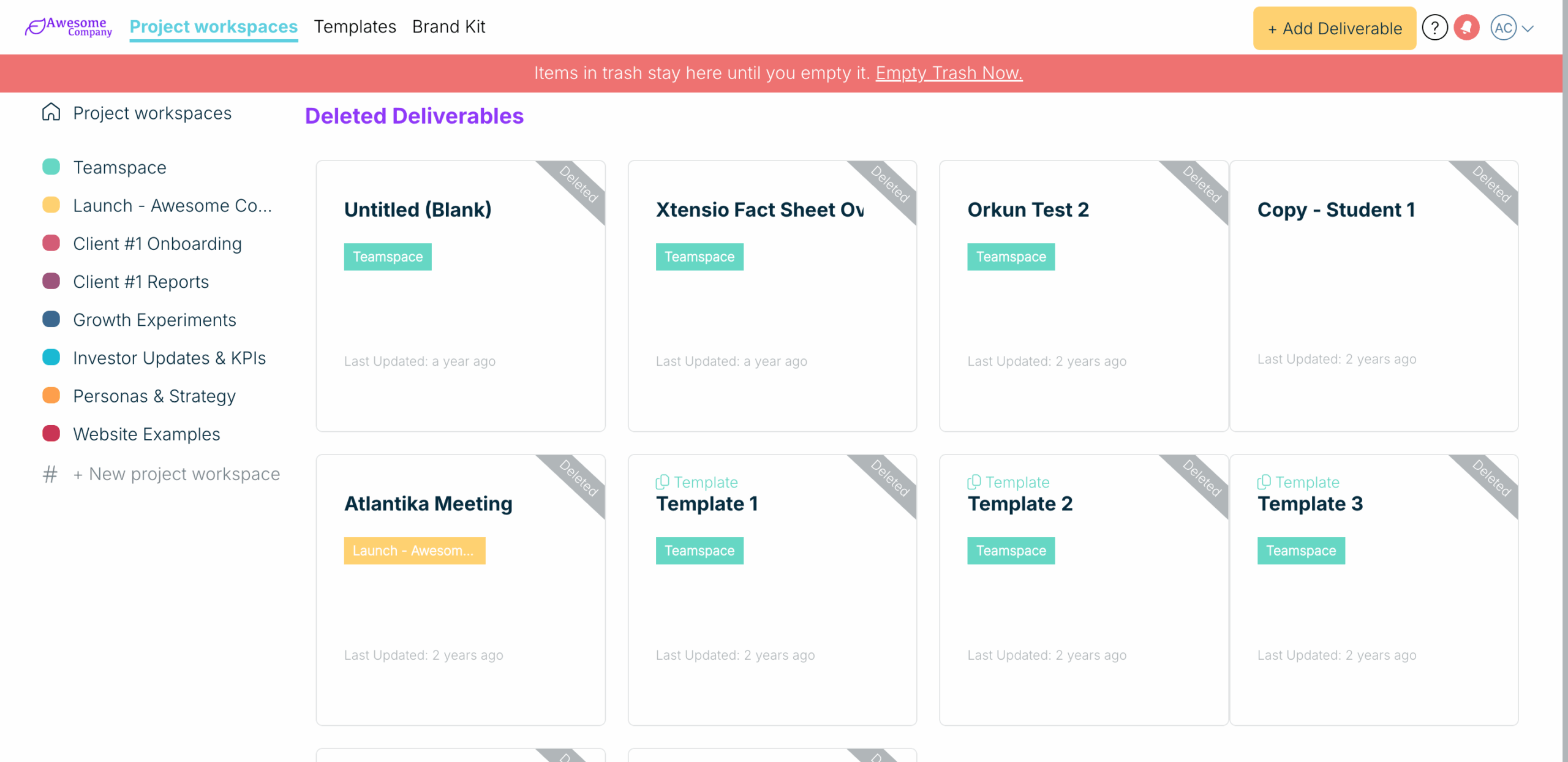
- Choose Trash at the bottom of your dashboard’s sidebar. It opens Deleted Deliverables.
- Not sure it’s the right one? Hover over it and choose the eye icon. The deliverable opens read-only in a new tab, with “This deliverable is deleted” at the top and a Recover button.
- Hover over the deliverable and choose Recover Deliverable.
- Choose Yes, Recover This.
The deliverable goes back to your dashboard, in the same project workspace, and you can edit and share it again.
Delete forever
Items stay in Trash until you empty it, so nothing is removed automatically.
- One deliverable: in Trash, hover over it, choose the bin icon, then Yes, Delete This.
- Everything in Trash: choose Empty Trash Now in the banner at the top of Trash.
Deleting forever removes the deliverable, its images and its form submissions, and any links to it stop working. It can’t be undone.
Related: Your dashboard · Find your deliverables
Was this article helpful?