Connect Claude or ChatGPT to Xtensio
You can connect an AI assistant such as Claude or ChatGPT to your Xtensio team. Once connected, you can ask it in plain words to find a deliverable, summarise it, start a new one from a template, edit the text, or share it, and the change shows up in Xtensio straight away.
It works on every Xtensio plan, including the free plan. Your plan’s usual limits still apply.
What you need
- An Xtensio account you can sign in to.
- An assistant that lets you add a custom connector: Claude (web, desktop app or Claude Code) or ChatGPT.
- The Xtensio address:
https://mcp.xtensio.com/mcp
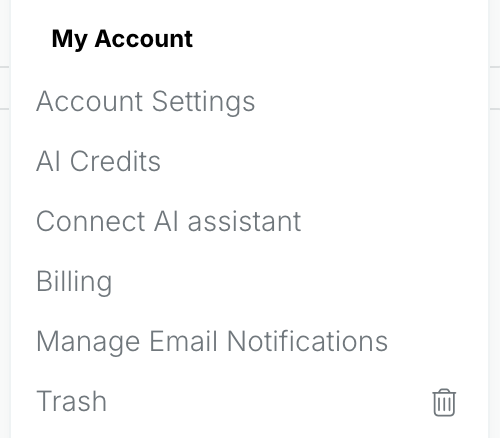
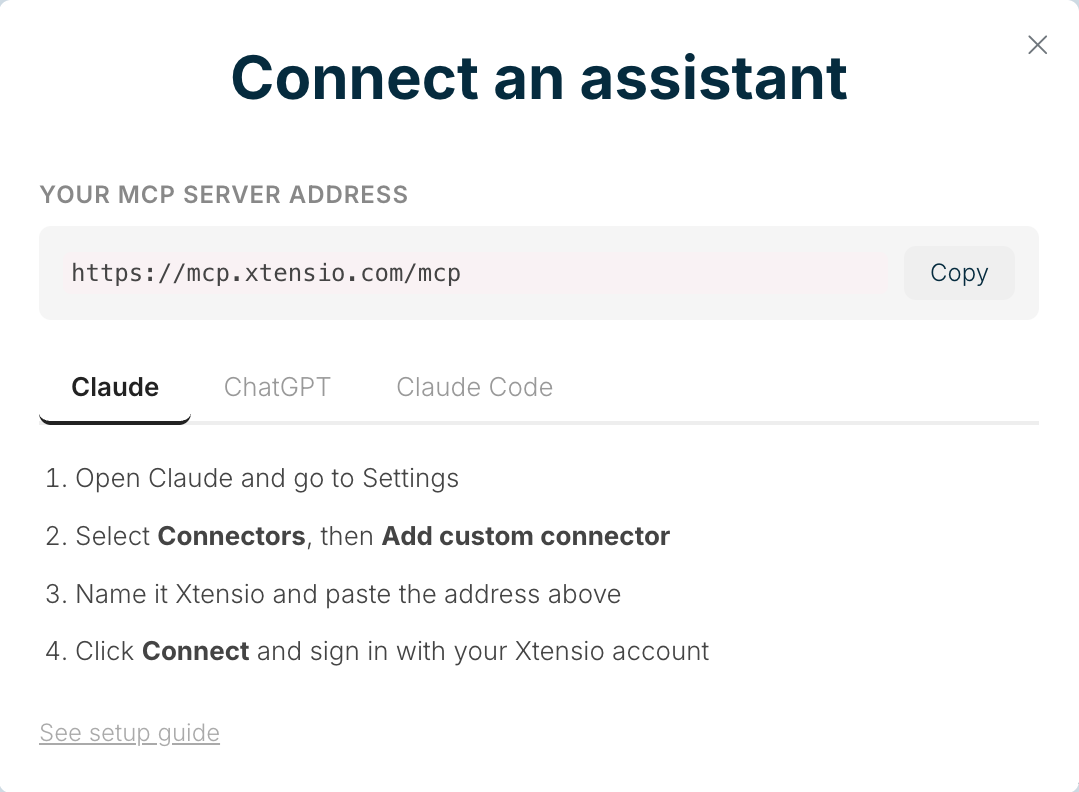
You can also find it in Xtensio. Choose your initials at the top right, then Connect AI assistant. The Connect an assistant window shows YOUR MCP SERVER ADDRESS with a Copy button, and tabs with the steps for Claude, ChatGPT and Claude Code. Create with AI and AI Credits also show “Prefer working in Claude or ChatGPT? Connect it”, which opens the same window.
Connect Claude (web or desktop app)
- In Claude, open Settings, then Connectors, then choose Add custom connector.
- Name it Xtensio and paste
https://mcp.xtensio.com/mcpas the address. - Choose Connect and sign in to Xtensio.
- Choose the team to connect (see Choosing a team), leave the permissions ticked, then choose Allow access.
- Start a new chat and ask “What is in my Xtensio team?” to check it worked.
Connect ChatGPT
- In ChatGPT, open Settings, then Plugins. Choose Add, then Add custom MCP server.
- Name it Xtensio, paste
https://mcp.xtensio.com/mcpas the server URL, and choose OAuth for authentication. Confirm and add it. - Sign in to Xtensio, choose the team, then choose Allow access.
- In a new chat, ask ChatGPT about your deliverables. The first time it uses Xtensio, ChatGPT asks whether to allow it: choose Allow once or Always allow.
Connect Claude Code
The Claude Code tab in the Connect an assistant window has the command ready to copy.
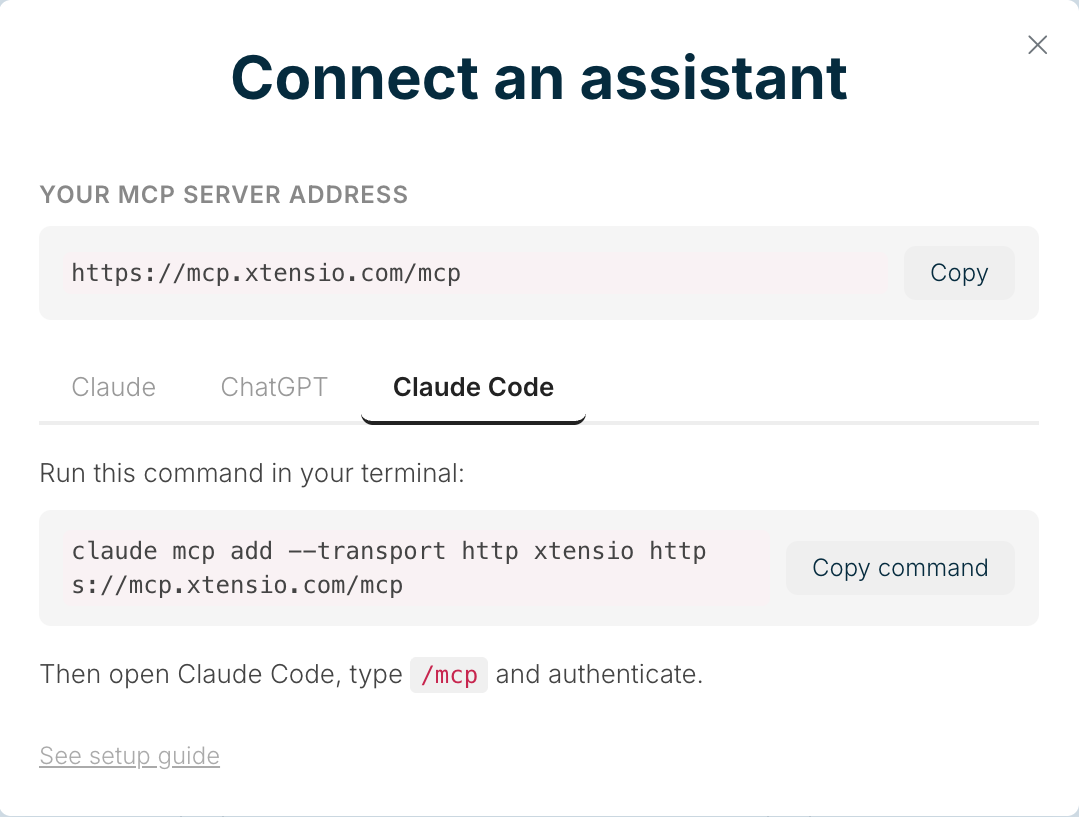
Run this in your terminal:
claude mcp add --transport http xtensio https://mcp.xtensio.com/mcp
Then start Claude Code, type /mcp, choose xtensio, then Authenticate. Sign in to Xtensio in the browser window that opens, choose the team, and choose Allow access.
Choosing a team
A connection works in one team only: the one you pick on the Allow access page. Pick a team you own. In a team where you are a guest, the assistant can read what you can see but can’t create deliverables.
To use a different team, disconnect and connect again, picking the other one.
What the assistant can do
When you allow access, you give the assistant three permissions, the same ones you have yourself:
- Read your deliverables, project workspaces and team details.
- Create and edit deliverables, including starting one from an Xtensio template.
- Change who can see a deliverable, for example sharing it or making it private.
Claude asks you before it edits a deliverable, renames one or changes who can see it.
Try asks like:
- “Find my capability statement and summarise it in three sentences.”
- “Make a one pager for Northwind Dairy from the One Pager template.”
- “Fix the typos in the first section of my Q3 report and change nothing else.”
- “Rename my proposal to Northwind proposal, final.”
The assistant can only do what your own account can do. It can’t see other people’s teams, and anything it changes is saved in Revision History, so you can go back. A version the assistant saved shows via Claude, via ChatGPT or via Claude Code under its time. See Revision history.
Disconnect an assistant
You can disconnect an assistant at any time. Choose your initials at the top right, then Connect AI assistant. Under CONNECTED ASSISTANTS you see each assistant, the team it is connected to and when it was last used. Choose Disconnect next to the one you want to remove. To use it again, it has to sign in again. You can also remove the connector from the assistant’s own settings.
Good to know
- Text in your documents is treated as content. If a deliverable contains wording that looks like an instruction, the assistant treats it as part of the document, not as a request from you.
- Check before you send. Read what the assistant made before you share it with a client, just as you would with a draft from a colleague.
- No AI credits. Creating and editing through your assistant doesn’t use Xtensio AI credits, because the assistant writes the content itself.
- Exports count. A PDF or PNG made through your assistant counts toward your plan’s export limit, the same as one made in Xtensio.
- Something not working? Contact us and tell us which assistant you used.