
Create custom templates
Turn a deliverable you’ve perfected into a template, so you and your team start from it next time.
Make a deliverable a template
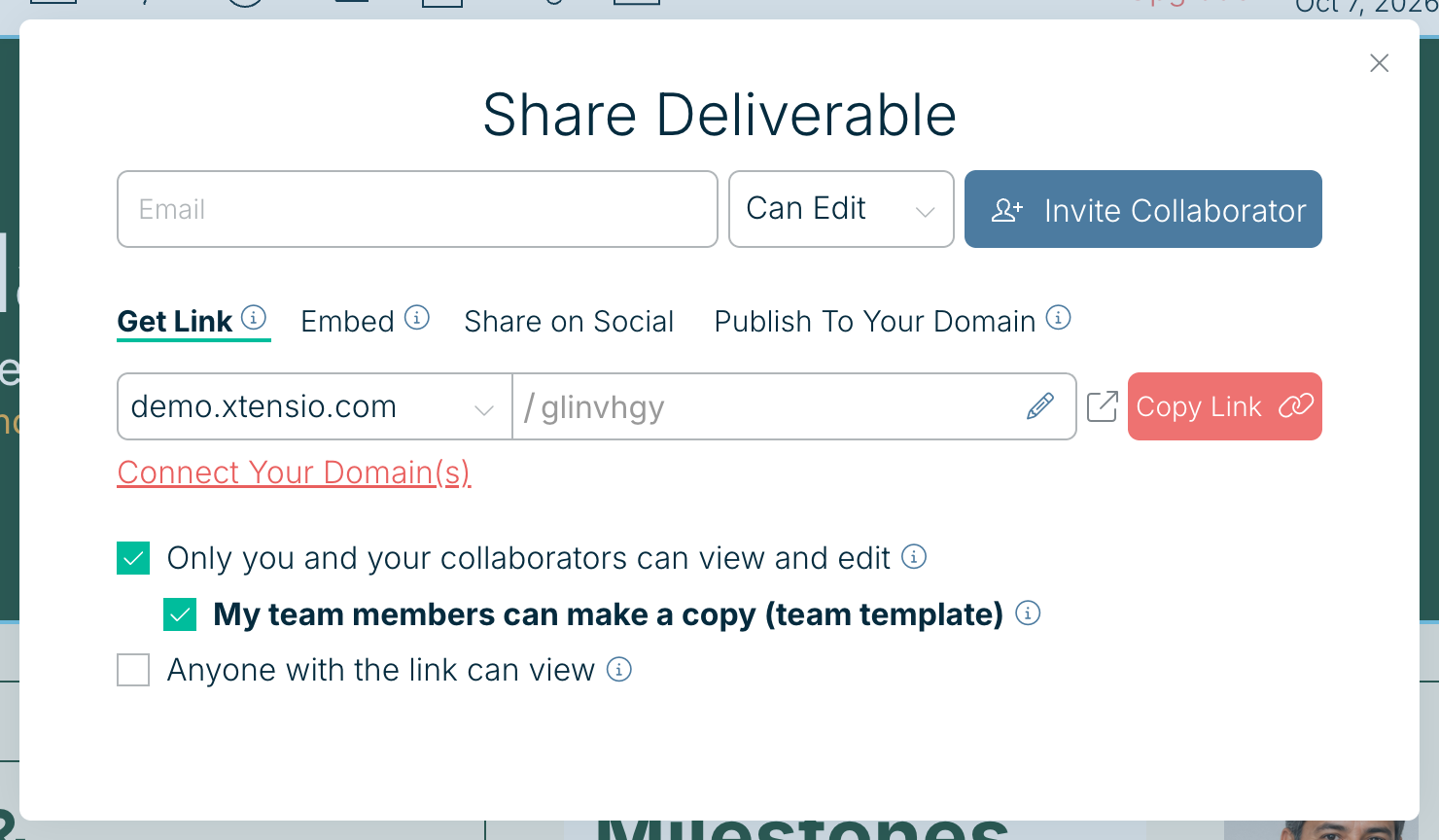
- Open the deliverable and choose Share at the top right of the editor. You can also open the More menu (the three dots at the right end of the toolbar) and choose Save as Template, or choose Save as Template from the deliverable’s menu on your dashboard. Both open the same Share Deliverable panel.
- Choose who can copy it:
- My team members can make a copy (team template): sits under Only you and your collaborators can view and edit. Save as Template ticks it for you. Your team finds the template under Templates > My Team Templates.
- Anyone with the link can make a copy (public template): tick Anyone with the link can view first, then this option. Anyone you share the link with can copy it into their own account. Under it you can also tick Notify me when my deliverable is copied (lead generation) and Add to Team Templates.
On your dashboard the deliverable now shows a Template label, and its main button reads Use Template.
Update a template
Open the deliverable’s menu and choose Edit Template, or open the deliverable as usual. Changes you make are what your team copies next time. Deliverables already made from it don’t change.
Stop sharing it as a template
Choose Share and untick My team members can make a copy (team template) (or Anyone with the link can make a copy (public template)). The deliverable itself stays on your dashboard.
Related: Create a shared team template · What is the difference between a deliverable and a template?
Was this article helpful?