
Task list module
A task list keeps next steps, checklists and action items inside your deliverable. Each item has a status, and the module shows how many items are completed with a progress bar.
Add a task list
Click Add Task List in the module bar. A new list has the title Task List, a counter (“0 out of 5 items completed”), a progress bar and five items.
Write your tasks
- Click the task list once to select it.
- Click the title or an item’s text and type. Select the old text first to replace it.
- To add an item, press Enter at the end of an item (a new one appears just below it), or click + in the module’s small toolbar (a new one appears at the end). Click into the new item before you type in it.
Set a status
Click the round button at the start of an item and choose:
- Next: a red arrow, for what comes up next.
- In Progress: a yellow clock.
- Completed: a green tick. Only completed items count towards “items completed” and the progress bar.
- Reset Status: back to an empty circle.
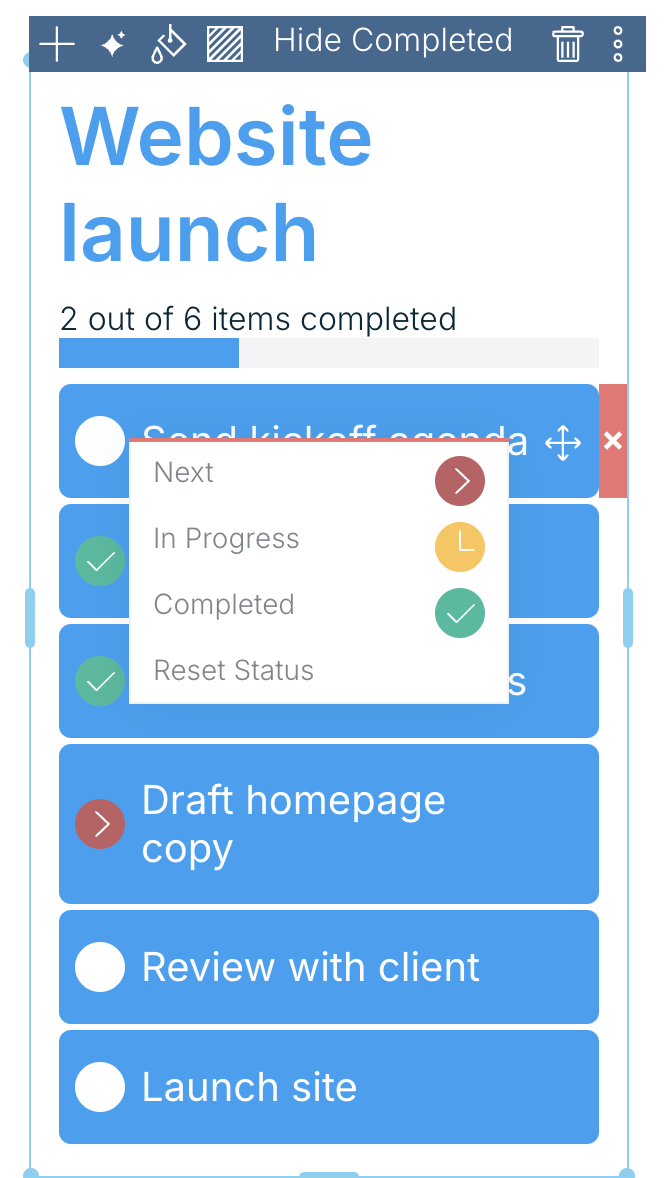
Remove an item
Select the task list, hover the item and click the small x at its right end.
Options
With the task list selected, the small toolbar has:
- +: add an item at the end.
- AI Helper (sparkle icon).
- Color (paint drop): one colour for the title, the progress bar and the item backgrounds. Pick a swatch or type a hex code, then click Ok.
- Background (striped square).
- Hide Completed: hides completed items so the list shows only what’s left. Click Show Completed to bring them back.
- Delete Module (bin icon).
- More (three dots): Hide Item Status (removes the status buttons and the progress counter for readers; you’ll still see them while editing), Hide Progress, Hide Header, Show Border, Duplicate Module, Copy Module and Copy Module Key.
Rewrite with AI
Select the task list and click Edit with AI. The task actions are Make actionable (rewrites items to start with a verb), Prioritize, Tighten, Deduplicate and Align, or type your own request. Each run uses AI credits. Check the proposed change and click the tick to keep it.
Related: Working with modules · Table module