
Table module
Use a table to compare options, track owners and dates, or lay out any data in rows and columns. Besides text, a column can hold checkboxes, star ratings or coloured labels.
Add a table
Click Add Table in the module bar, or drag it onto the page. A new table has three columns, a header row and three rows. Header cells read Text and the other cells show the grey hint Description… until you type in them.
Type in the cells
- Click the table once to select it.
- Click a cell to put your cursor in it. The text toolbar appears at the top of the editor, so you can make text bold, change its colour and so on.
- Press Tab to move to the next cell. Tab goes left to right, then on to the next row, and skips checkbox, rating and label cells.
The table grows taller on its own as you add text.
Add rows and columns
Select the table and click + in its small toolbar. Choose what to add:
- Add a Row: a new row at the bottom.
- Add Text Column: a column for words and numbers.
- Add Checkmarks Column: a checkbox in every row. Click a box to tick it, click again to clear it.
- Add Ratings Column: five stars in every row. Click a star to set the rating; you can set half stars.
- Add Labels Column: coloured tags, such as a status. See below.
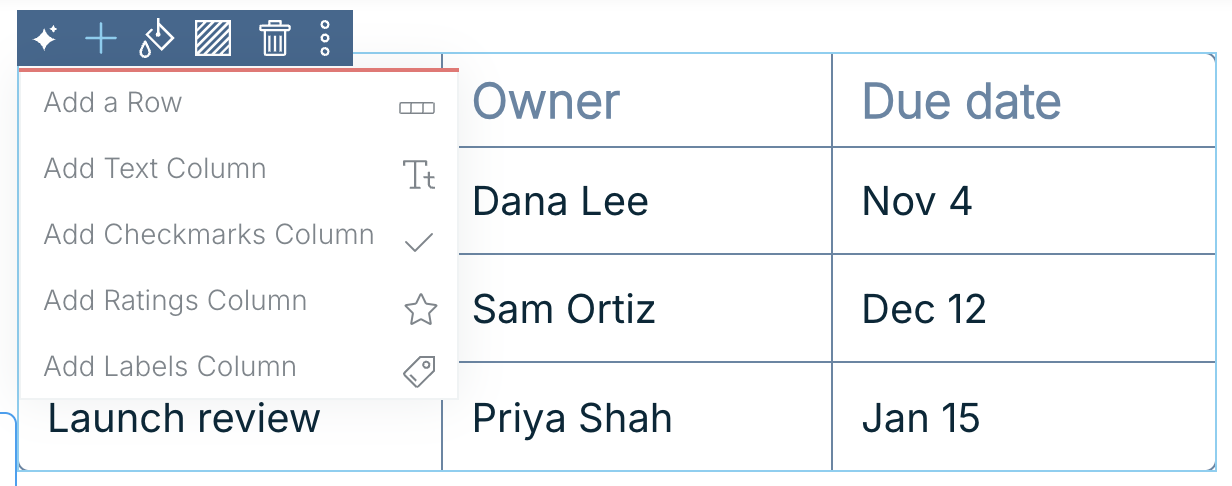
Each extra column makes the others narrower. If you need many columns, make the module wider first by dragging its side handle.
Remove a row or a column
- Row: hover the row and click the small x that appears at its right end.
- Column: click into the column’s header cell, then click the bin icon that appears in that header.
Both happen straight away, without a confirmation.
Use labels
Click a cell in a labels column to open Labels.
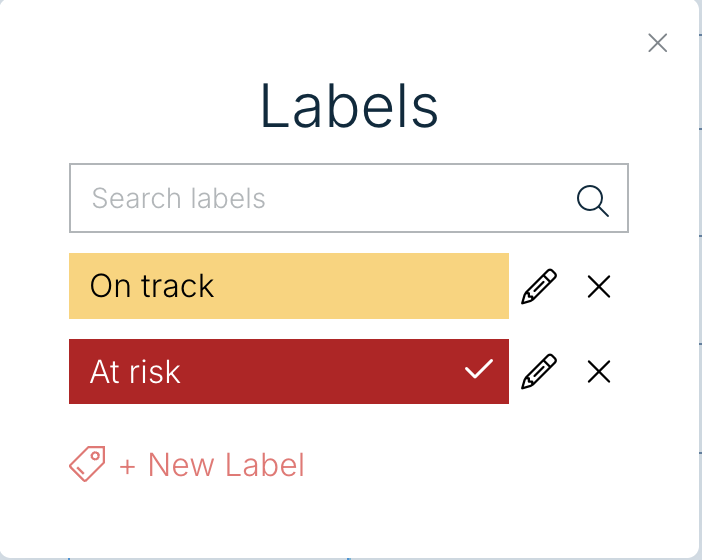
- Click a label to add it to the cell (a tick shows it’s on). Click it again to take it off. A cell can hold more than one label.
- + New Label opens Add Label: type a Label Name, pick a colour (or type a hex code and click Ok), then Save. The name is required.
- The pencil opens Edit Label. Renaming or recolouring a label changes it in every cell that uses it.
- The x deletes the label from the whole table at once.
- Search labels filters the list. If nothing matches, you can create a label with the words you typed.
Style the table
With the table selected, the small toolbar also has:
- Color (paint drop): one colour for the header text and the cell borders. Pick a swatch or type a hex code, then click Ok.
- More (three dots): Hide Borders / Show Borders, Duplicate Module, Copy Module and Copy Module Key.
- Delete Module (bin icon).
Related: Text module · Labels module · Working with modules