Email form module
An email form lets people who view your shared deliverable leave their email address, for example to get a guide, ask for a call or hear about updates. You see every address that comes in.
Add an email form
Click Add Email Form in the module bar. The form appears in the section you have selected, with an email field and a button.
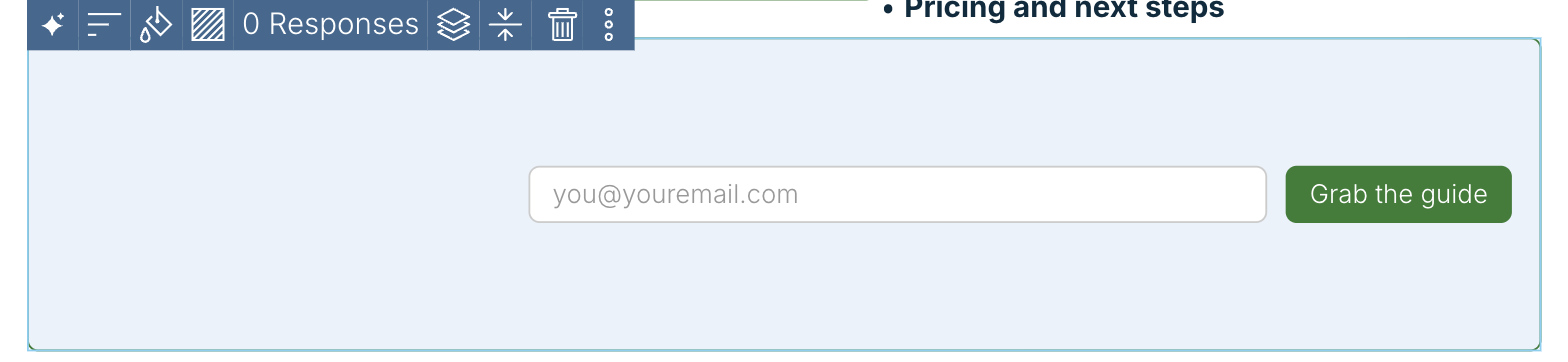
The button reads Join Us! until you change it. To change the label, click into it and type, for example “Grab the guide”.
What visitors see
On your shared deliverable, visitors type their email address in the field (it shows “[email protected]” until they type) and click the button. The address is saved to your responses straight away, and in place of the form the visitor sees “Thank you! We got your email.”
Style the form
Click the form to select it. The buttons along its top edge:
- Align: put the field and button on the left, in the centre or on the right.
- Button Color: pick the button colour, or type a hex code and click Ok.
- Background: give the form a background. The dialog has three tabs, Library, Search FREE Photos and Colors. On Colors, click a swatch or type a hex code and click Ok. Reset Background removes it.
- Adjust Vertical Alignment: Align to Top, Align to Middle or Align to Bottom inside a taller form.
- More: Show Border, Duplicate Module, Copy Module and Copy Module Key.
- Delete Module: removes the form after you confirm. This can’t be undone.
Alignment shows best when the form is wider than the field and button. Drag the side handle to make it wider.
See and download responses
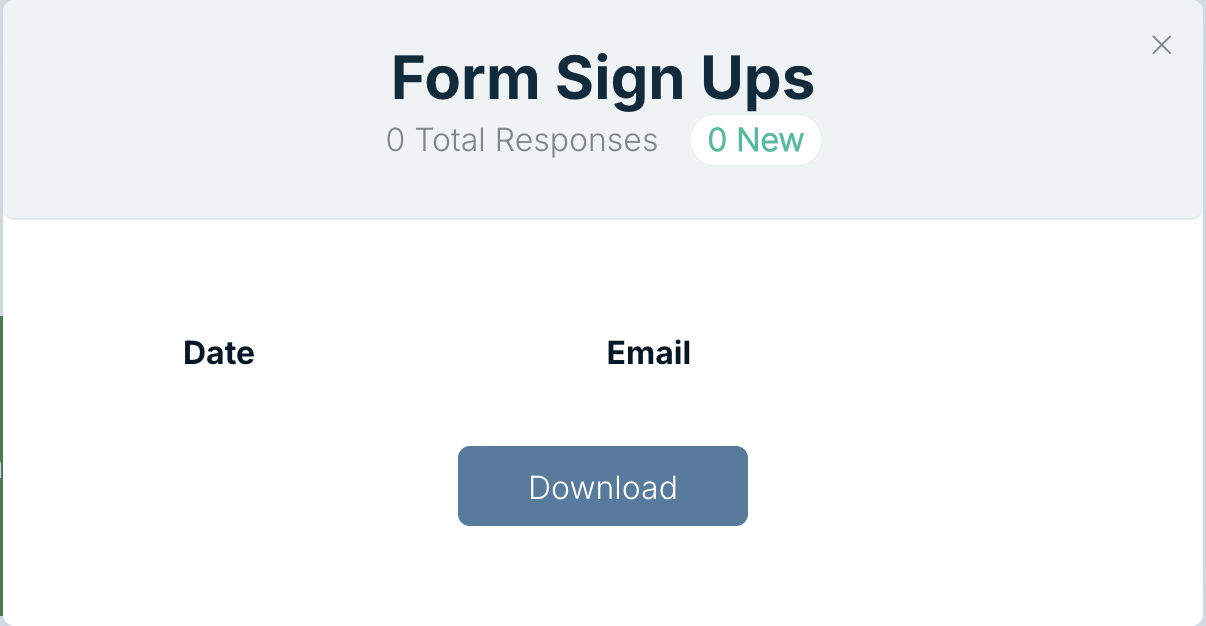
The number of responses shows on the form’s top bar, for example 0 Responses. Click it to open Form Sign Ups, which lists each response by Date and Email. Click Download to save them as a CSV file.
Get notified of responses
Open the menu under your initials (top right) and choose Manage Email Notifications. Next to “Notify me when I receive a response on my email form.” pick Immediately, Daily or Never, then choose Update. With Immediately, you get an email titled “(deliverable name) has a new email form response” as soon as someone signs up. Open the deliverable and click the response count on the form to see who it was.
Rewrite the button with AI
Hover the form and click Edit with AI. Pick a quick action (Rewrite CTA, Make it punchier, Shorten, Align, Apply brand voice) or type what you want. Each request uses AI credits; the panel shows how many. Click the tick to keep the change.
Related: Button module · Working with modules