
Manage team members and guests
The team owner and team admins can invite people, change their role and remove them.
Invite someone
- Open the menu under your initials at the top right and choose Manage Team Members.
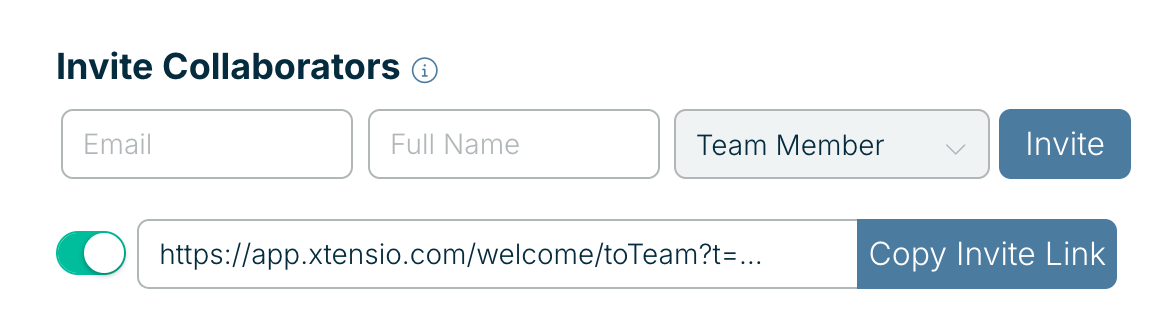
- Under Invite Collaborators, enter their email and name and choose a role.
- Choose Invite. They get an email with a link to join.
You can also switch on the invite link and choose Copy Invite Link to share one link with several people. Anyone with that link can join your team, so switch it off when you’re done.
Roles
- Team Owner: manages billing and the team.
- Team Admin: manages the team, people and Teamspace Settings.
- Team Member: creates and edits deliverables, and sees every team-visible project workspace (not private ones unless invited).
- Guest: sees only the deliverables or project workspaces they’re invited to, and can’t create deliverables.
Everyone, the Team Owner included, sees only what they have access to: private and privately shared work stays with the people it’s shared with. See Team user roles. Guests don’t count as paid people. See Team user roles.
How many people you can have
- Free: 1 person and 1 guest.
- Xtensio Plus: up to 5 people, each billed as a seat, plus unlimited guests.
The panel shows how many seats your plan includes and how many are in use.
Remove someone or change their role
In Manage Team Members, find the person in the team list. Use the role menu next to their name to change their role, or remove them from the team. Deliverables they created stay with the team.
Related: Team user roles · Change your team name