Ask for access to a private deliverable
If someone sends you a link to a deliverable that is set to private, Xtensio shows a page instead of the deliverable.
If you opened the link
- If you are not signed in, the page says “If you think you should have access, please sign in.” Sign in to Xtensio, then open the link again.
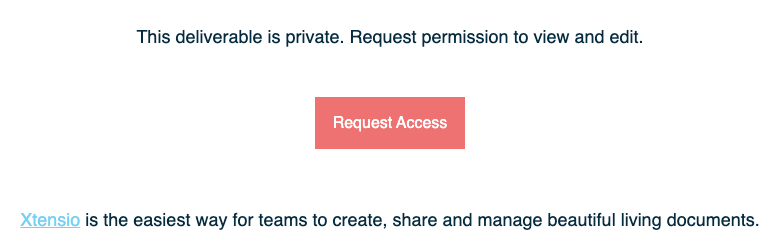
- Signed in, you’ll see “This deliverable is private. Request permission to view and edit.”
- Choose Request Access. The page changes to “You have requested access to edit this deliverable, please wait for the owner to respond.”
Once the owner approves, open the same link again and the deliverable opens.
If you own the deliverable
You get an email titled “(name) has requested access to (deliverable name)”. To answer it:
- Choose See All Requests in the email, or open the deliverable and choose Invite Collaborators.
- Under Pending Requests you’ll see each person’s name and email address.
- Choose Grant Access to let them in.
After you grant access you’ll see “(name)’s request has been approved”. The person then appears under Who has access on that deliverable, where you can change their access or remove them with the x next to their name.
You can turn the request emails on or off in Manage Email Notifications (“Notify me when someone requests access to a deliverable.”).
Related: Adding and removing collaborators · Manage email notifications
Was this article helpful?