Manage email notifications
Choose which emails Xtensio sends you about your deliverables, your team and the people you work with.
- Open the menu under your initials at the top right.
- Choose Manage Email Notifications.
- Change any setting, then choose Update. Cancel closes without saving.
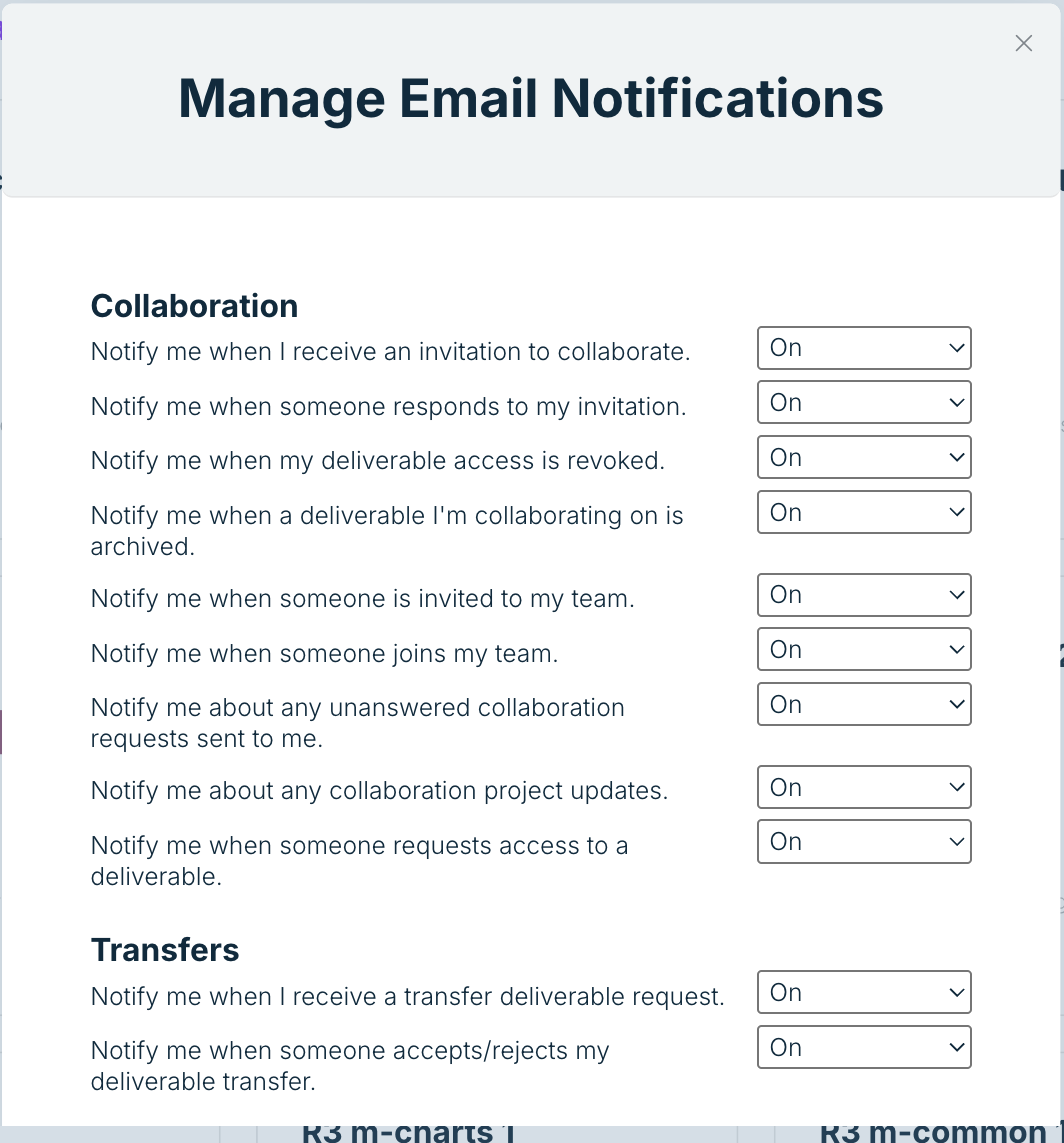
What you can switch on or off
Each of these is On or Off.
Collaboration
– Notify me when I receive an invitation to collaborate.
– Notify me when someone responds to my invitation.
– Notify me when my deliverable access is revoked.
– Notify me when a deliverable I’m collaborating on is archived.
– Notify me when someone is invited to my team.
– Notify me when someone joins my team.
– Notify me about any unanswered collaboration requests sent to me.
– Notify me about any collaboration project updates.
– Notify me when someone requests access to a deliverable.
Transfers
– Notify me when I receive a transfer deliverable request.
– Notify me when someone accepts/rejects my deliverable transfer.
Reports & Analytics
– Notify me when my deliverable is viewed at least once.
– Notify me when somebody uses my template. (Leads)
– Notify me when I receive a response on my email form. This one is Immediately, Daily or Never.
– Send me Weekly Insights.
Referrals
– Send me Weekly Summary.
Emails you always get
Some emails are about your account itself, so they are not on this list: the 6-digit code when you sign up, password reset links, and the link to confirm a new sign-in email address.
Related: Email form module · Ask for access to a private deliverable · Reset or change your password