
Export a PDF, PNG or HTML file
- Choose Download at the top right of the editor.
- Pick the PDF, PNG or HTML tab.
- Choose Preview and Export.
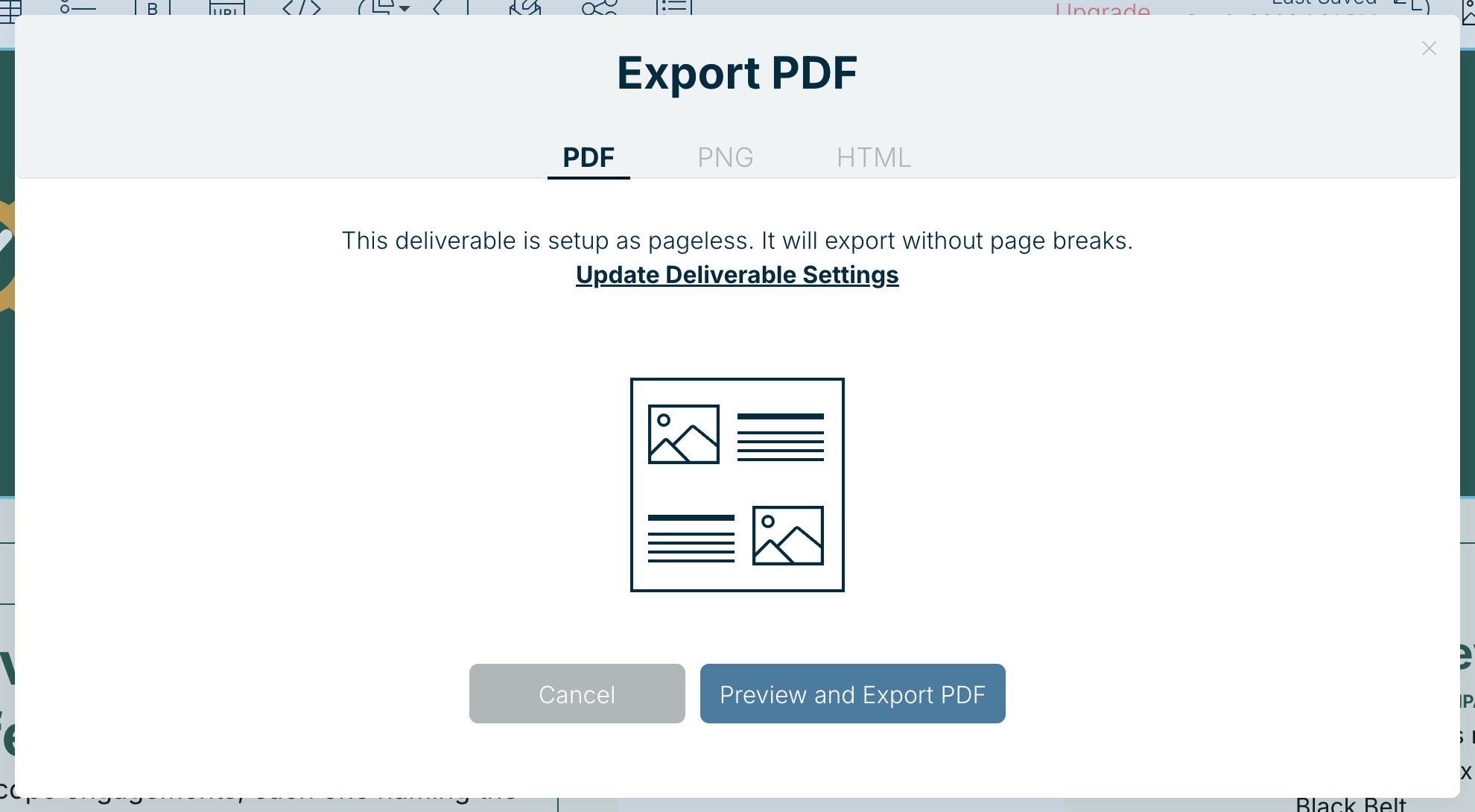
One long page, or pages?
If your deliverable is pageless (the default), the PDF comes out as one continuous page. For separate pages, for printing or a slide-style PDF, choose Update Deliverable Settings in the export panel and switch to Paged. See Customize your folio for print.
Export on the Free plan
Exports are unlimited on every plan. On Free, PDF and PNG exports carry a small Xtensio watermark; with Xtensio Plus they’re unbranded. HTML export is part of Xtensio Plus.
Subscribed but still seeing the watermark? Check you’re signed in to the account that has Plus.
Export part of a deliverable
You can also export a single section, on any plan. See Export sections.
Related: Share a weblink · Present a digital slideshow
Was this article helpful?