
Insert text links
- Put your cursor in a text module and select the words you want to link.
- Click Insert Link in the text toolbar, or press ⌘K.
- In URL, paste the full web address, starting with
https://. Text is already filled with the words you selected; change it if you like. - Tick Open in new tab if the link should open in a new browser tab.
- Click Insert.
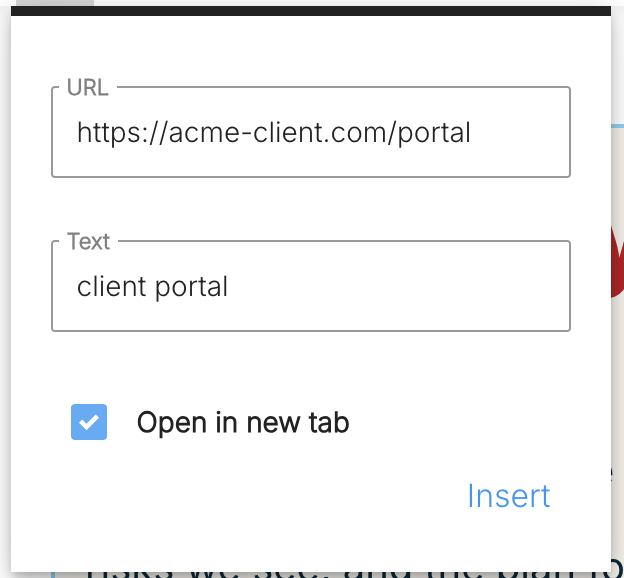
Xtensio checks the address before adding it. If the field is empty, or the site can’t be reached, you’ll see Ooops! We could not insert this link. Check the address opens in your browser and try again.
Change or remove a link
Click the linked words. A small popup offers Open link, Edit link and Unlink. Edit link opens the same fields; click Update to save.
Tables, images and buttons
To add a table, use the Table module. See Table module. To make a whole image or button clickable, see Image module and Button module.
Related: Text module · Format text styles
Was this article helpful?